Logo Intui.travel marketplace of airport transfers
Main page / Questions & Answers / How to add and assign a driver or representative for a trip?

How to add and assign a driver or representative for a trip?

Drivers tab in your personal account allow you managing your team faster and easier. You can select driver or representative from a saved list and link drivers or representatives to the trip.

Follow these steps to get started:

1) Go you your personal account and then click the Drivers tab and select Add driver:
 
Drivers tab

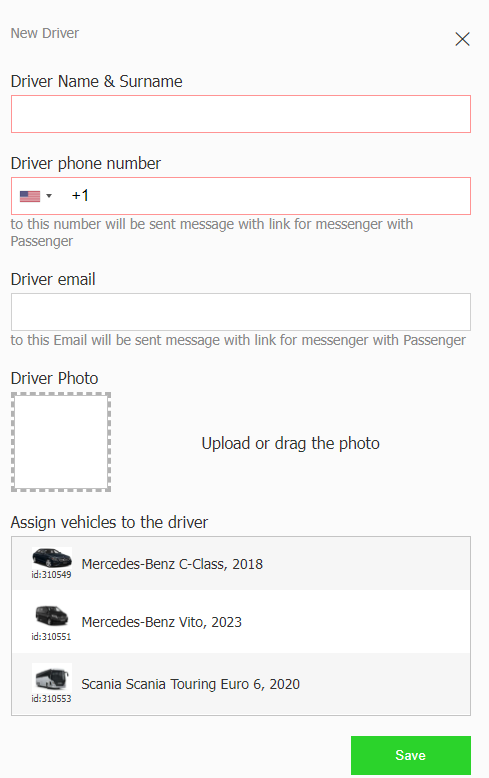
2) A window with blank fields will pop up:
Empty driver settings window

 
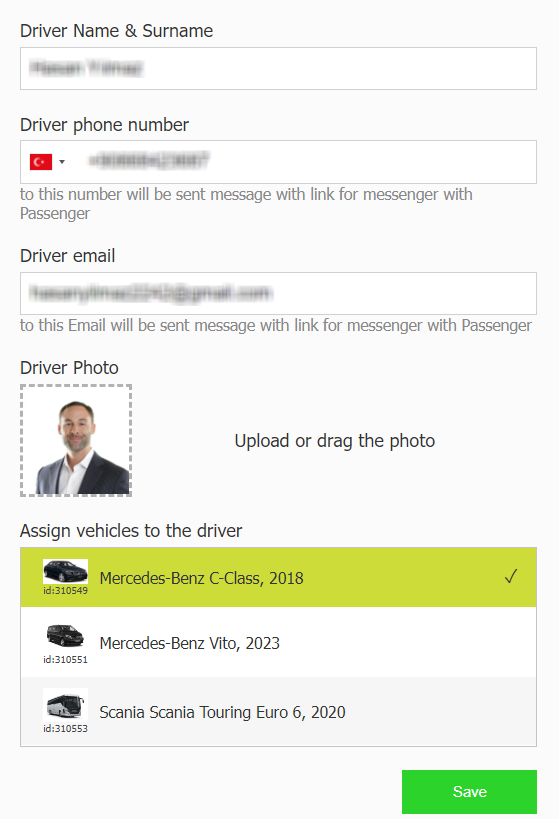
3) Fill in all blank fields. With this new feature, you can easily change all information about the drives. From their name, to their phone number, email, profile photo and which cars in your fleet you wish them to assign to:

Fields “Driver or representative Name” and “Driver phone” number are obligatory! The driver profile won’t save unless they’re filled.


Filled driver settings window

4) To edit driver’s / representative's information, click the edit button:
Edit driver


5) And after you've added a driver / representative or several drivers / representatives, you can now assign the driver or representative at the order page for an upcoming order:
Choosing a driver for an order:


Important Reminder!
Please make sure to assign a driver or representative no later than 12 hours before the transfer time. You can reassign the driver any time before the transfer starts.
We strongly recommend assigning drivers in advance to avoid missing the deadline and ensure smooth operation.

#driver #order